 sales@sunriver-electric.com

Chapter 1: Getting Started
A Quick Note From Your Partners at Sunriver Electric
Welcome to the final step of your solar journey: getting your system online.
At Sunriver Electric, we believe our job isn’t done when the inverter is on the wall. We’re here to help you get the most from your investment, and this guide is the first step.
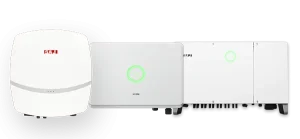
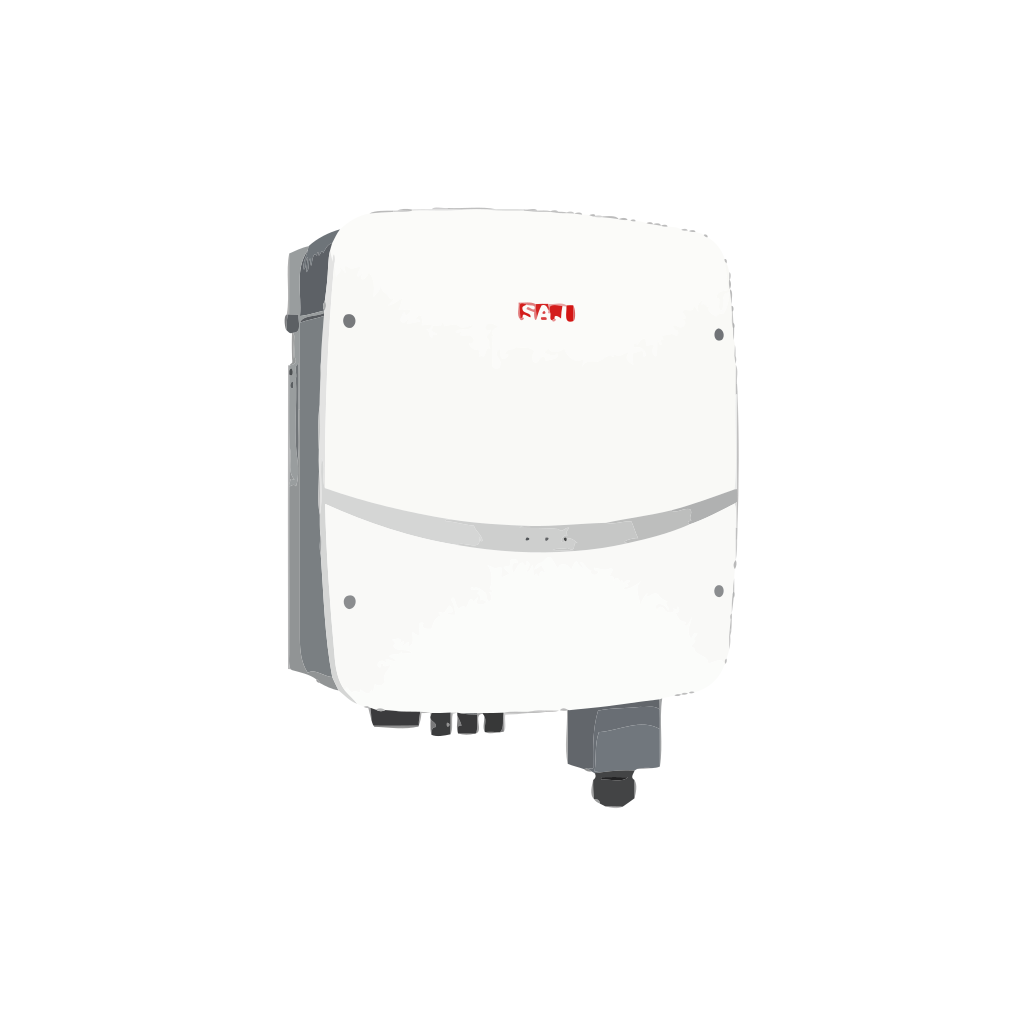
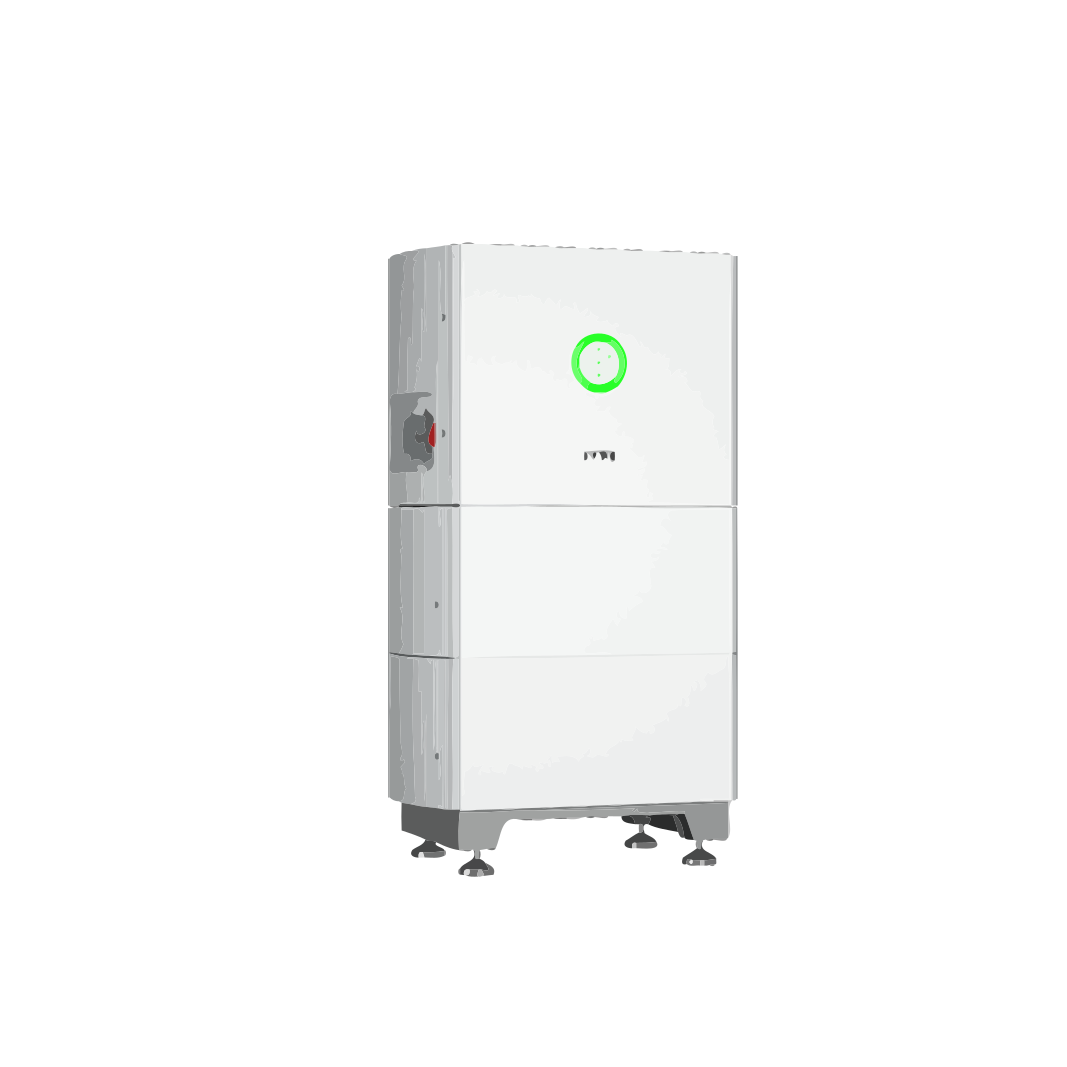
This guide is designed specifically for homeowners with Inversores conectados a la red SAJ (like the R5, R6, and C6 series).
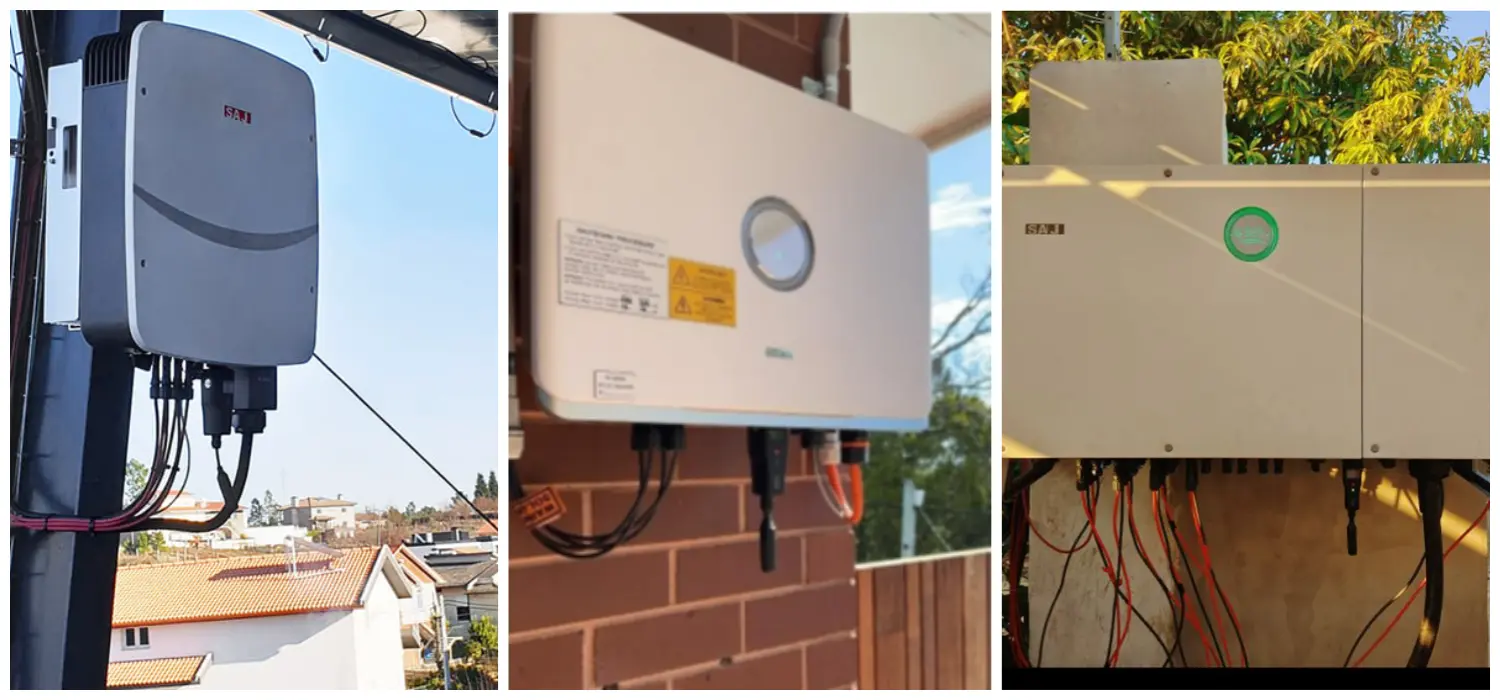
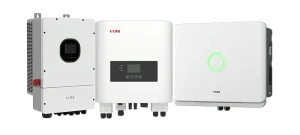
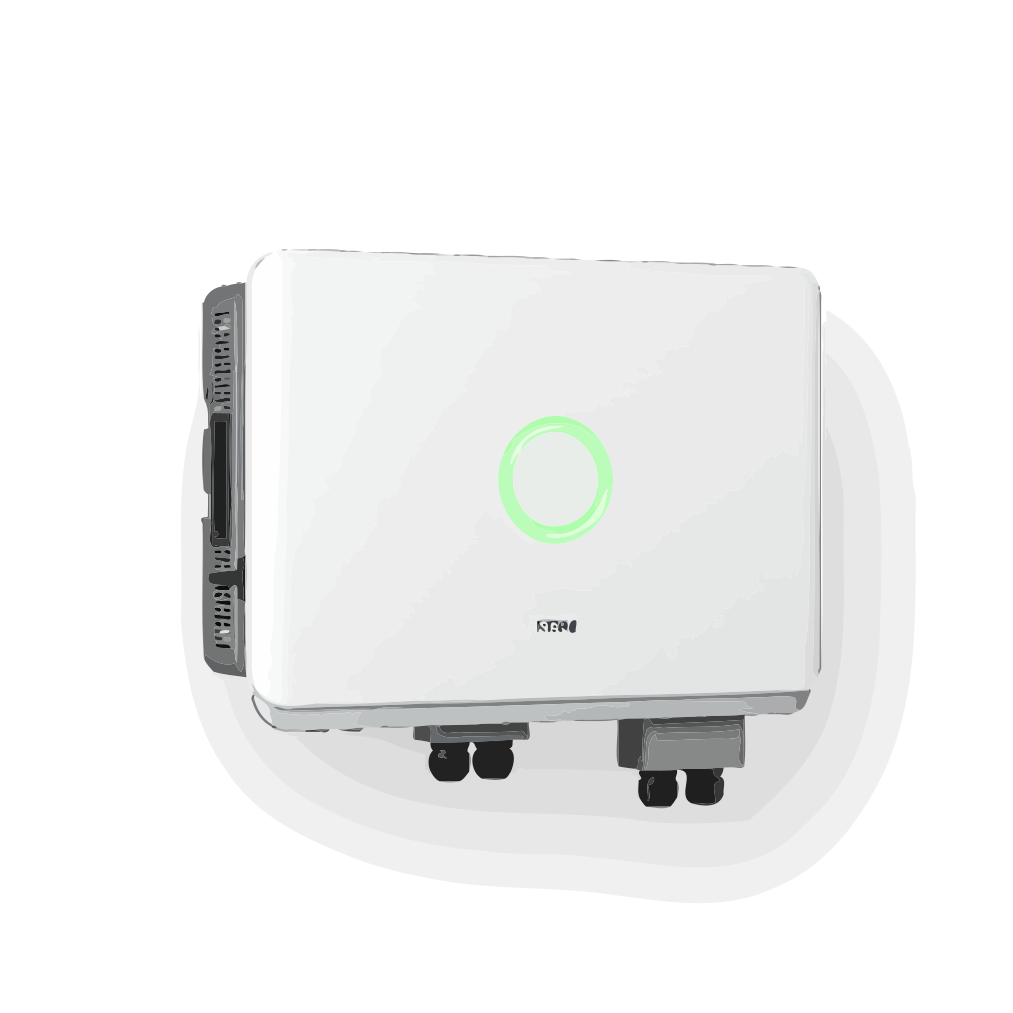
Note: If you have a hybrid system with a battery (H1, H2, or HS series), your app will look a bit different, but the Wi-Fi connection steps in Chapter 2 will still be very helpful!
Your Pre-Flight Checklist: What You’ll Need First
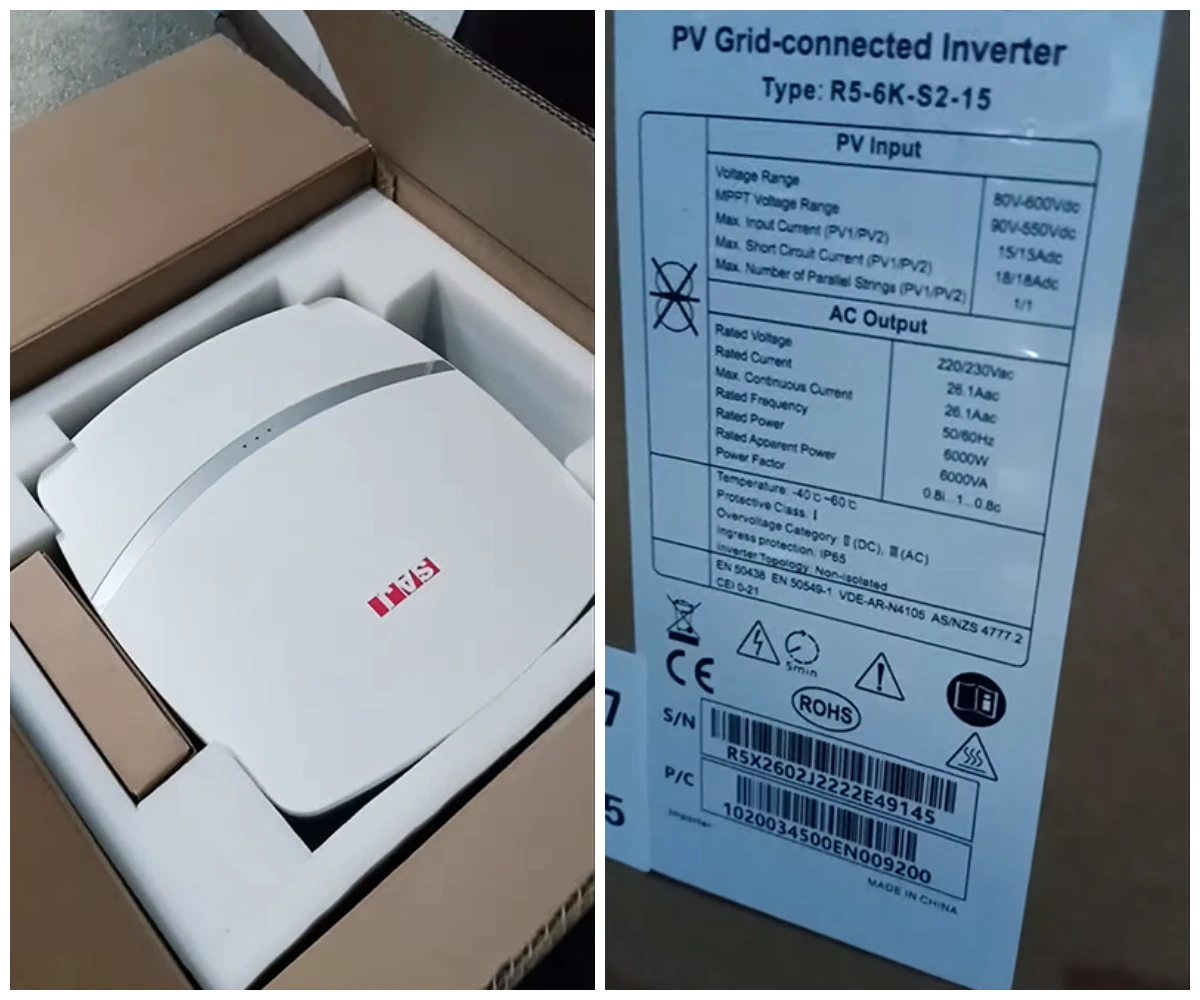
Before we begin, let’s gather everything you need. This will make the process smooth and error-free. The key is to have your inverter’s Serial Number1, your home’s Wi-Fi password, and the eKeeper app ready before you start.
Hardware & Access:
- Physical access to your SAJ inverter.
-
Your inverter’s Serial Number (SN).
Your Network Information:
- Your home Wi-Fi network name (SSID).
- Your home Wi-Fi password.
The Correct Software:
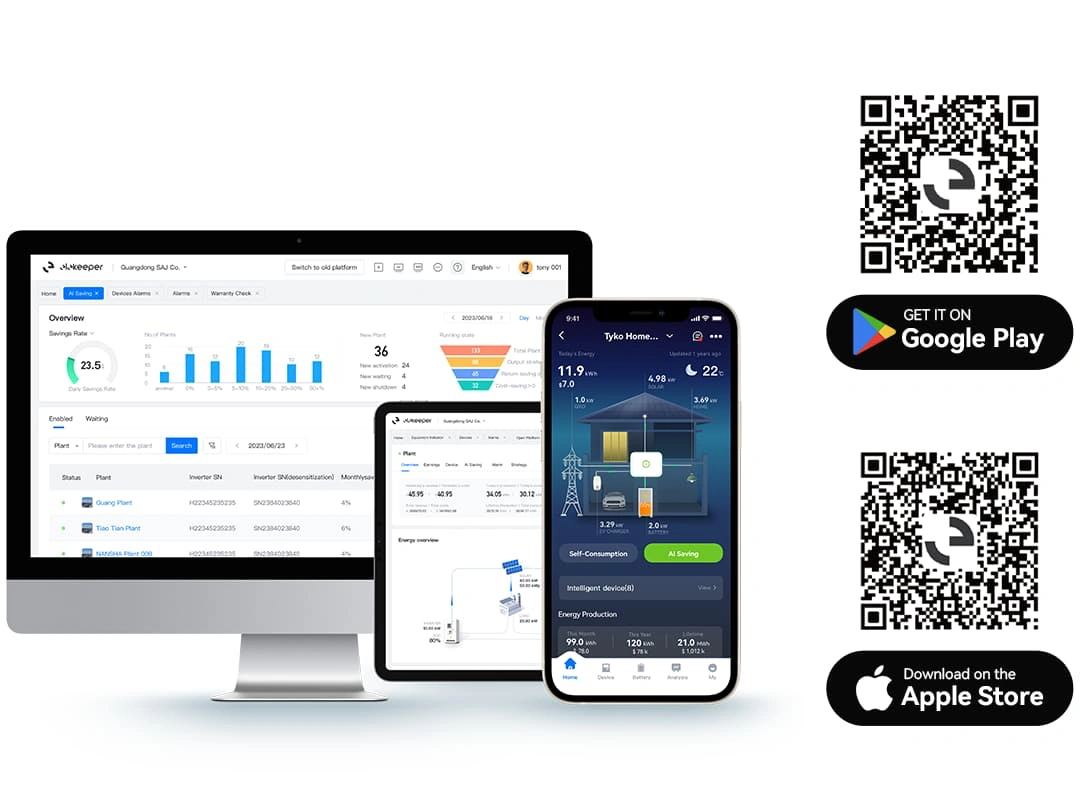
- Action: Download the official homeowner app to your smartphone.
- Warning: Make sure you have the new eKeeper app, which replaces older versions like eSolar Home. The eSolar O&M app is for professional installers and will not work for this guide.
Chapter 2: The Step-by-Step Connection Guides
Full Guide: How to Set Up Your Monitoring For the First Time
Follow these steps precisely to get your system online for the first time. The entire setup process involves connecting your phone to the inverter’s temporary Wi-Fi signal and then using the eKeeper app to assign the inverter to your home’s Wi-Fi network.
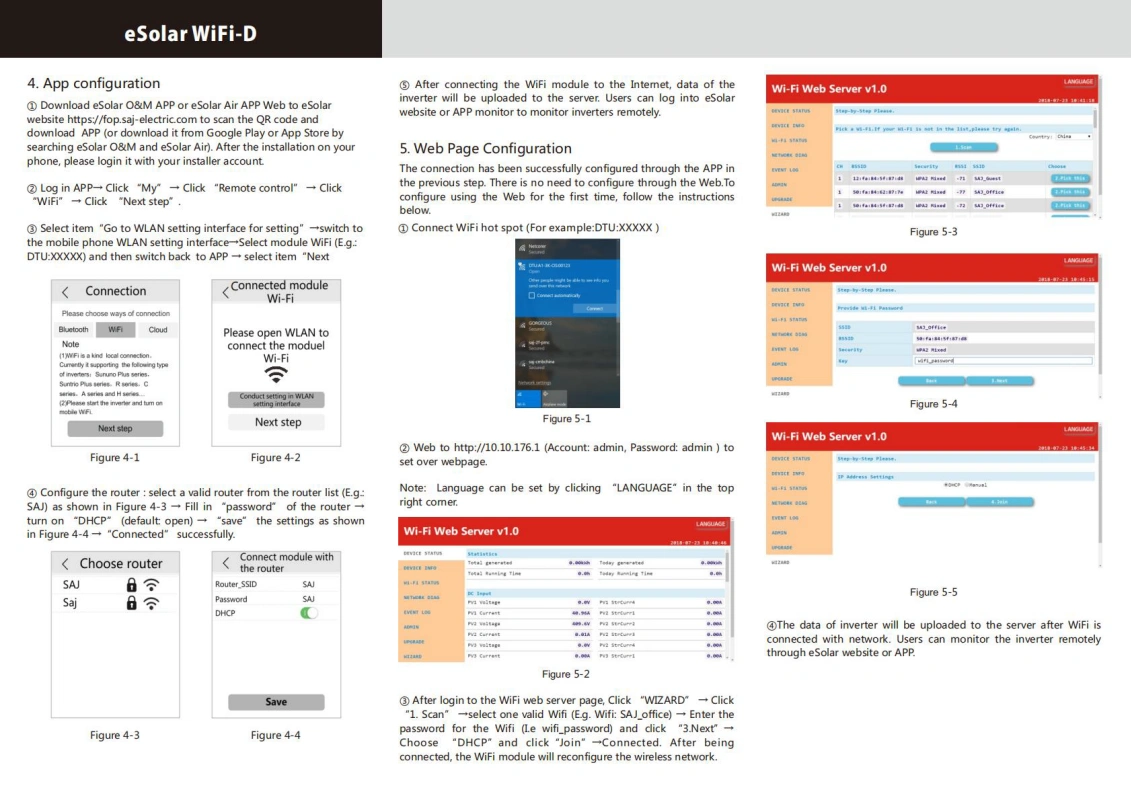
Step 1: Create Your "Owner" Account
- Open the eKeeper app.
- Tap Register.
- Select I’m an owner.
- Fill in your details and complete the registration process.
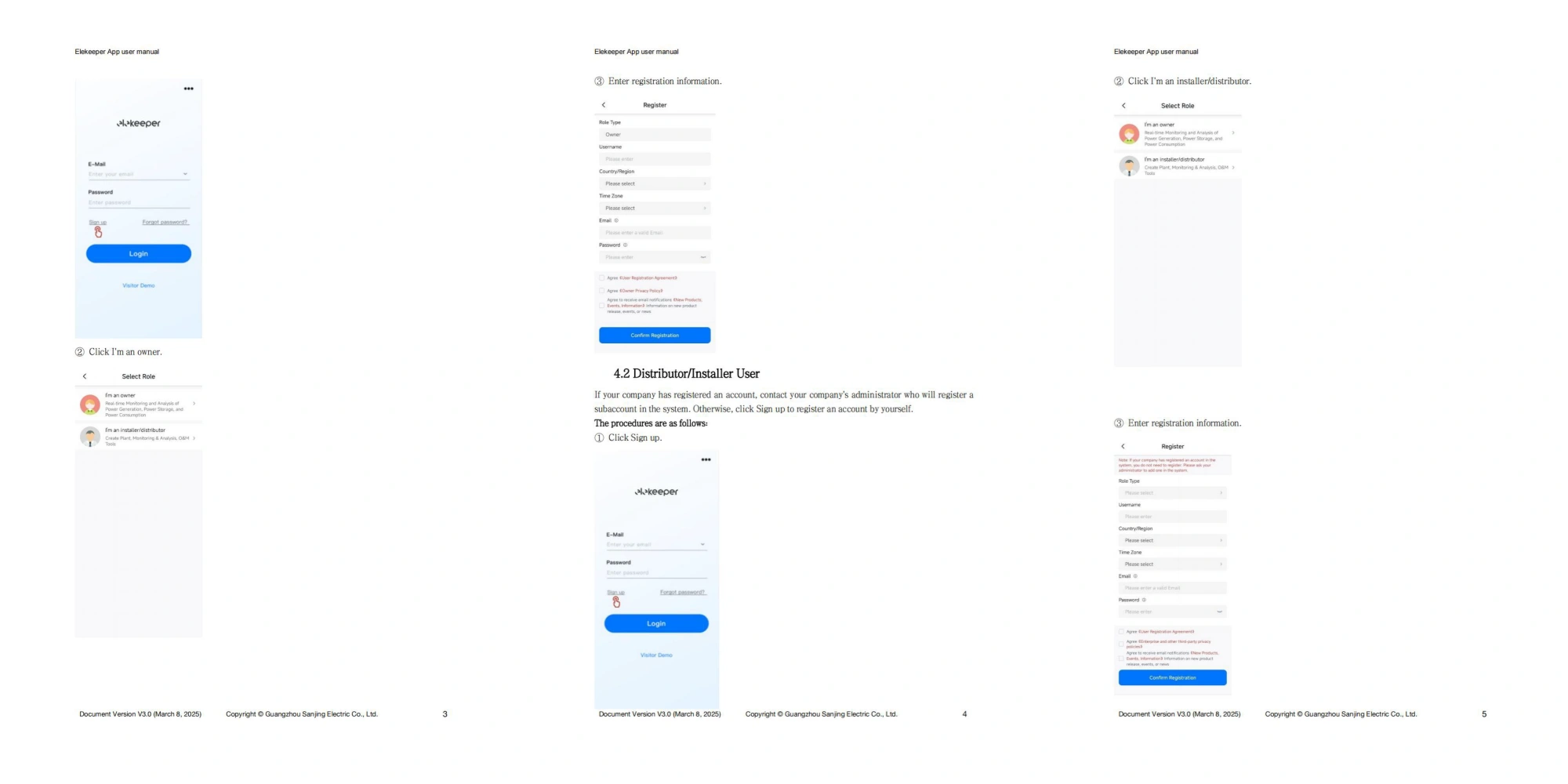
Step 2: Connect to the Inverter’s Wi-Fi (DTU Signal2)
- In the eKeeper app, navigate to the connection setup.
- When prompted, go to your phone’s Wi-Fi settings.
- You will see a new, open Wi-Fi network named something like DTU-12345678; connect your phone to this signal.
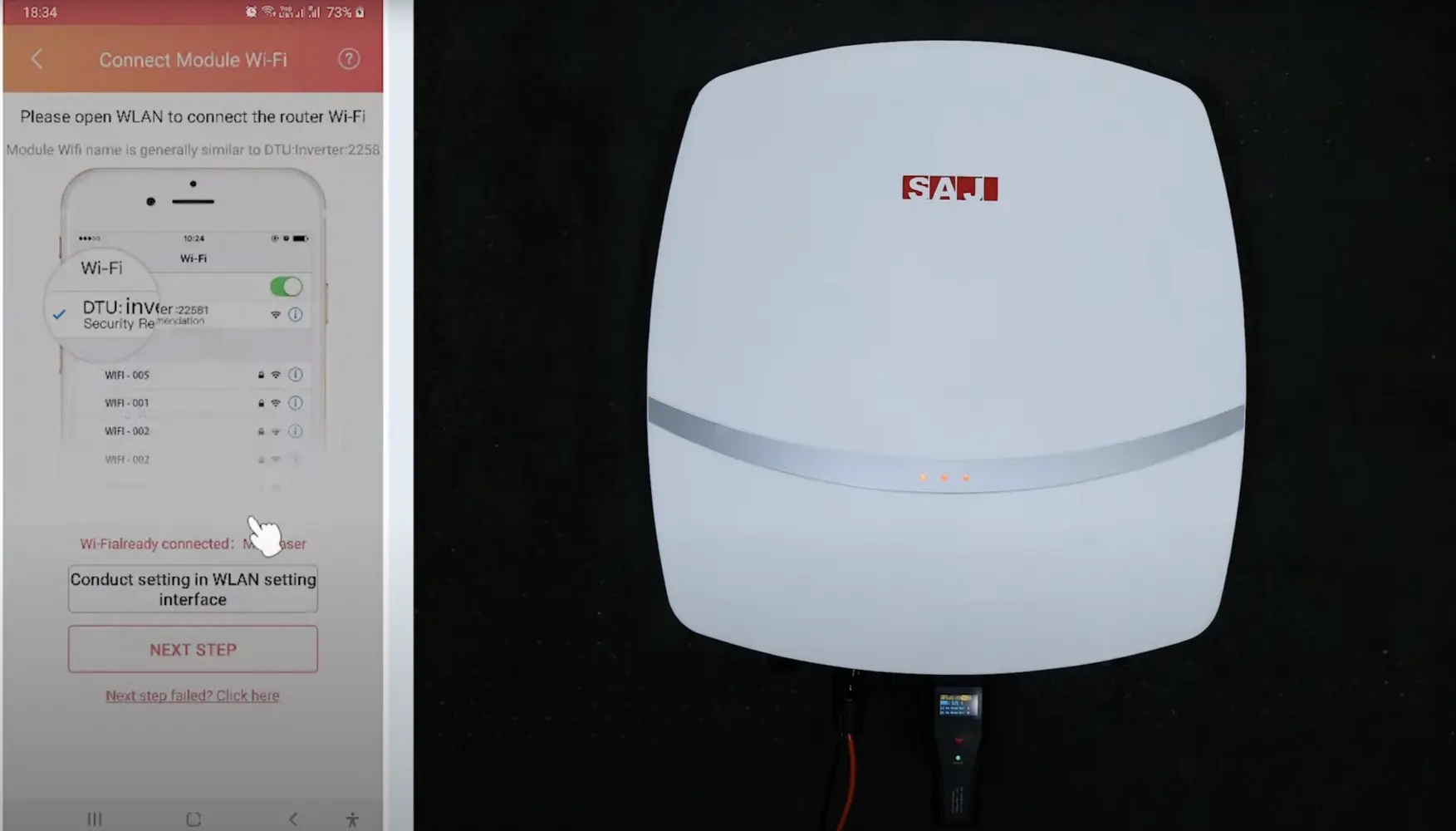
Sunriver Tip: This is the step where most people get stuck. Your phone might show a "No Internet Connection" warning and try to switch back to your home Wi-Fi. You must ensure your phone stays connected to the inverter’s "DTU" signal to complete the next step.
Step 3: Assign Inverter to Your Home Wi-Fi
- Return to the eKeeper app.
- The app will now show a list of nearby Wi-Fi networks it can see. Select your home Wi-Fi network from the list.
- Carefully enter your home Wi-Fi password and tap Configure.
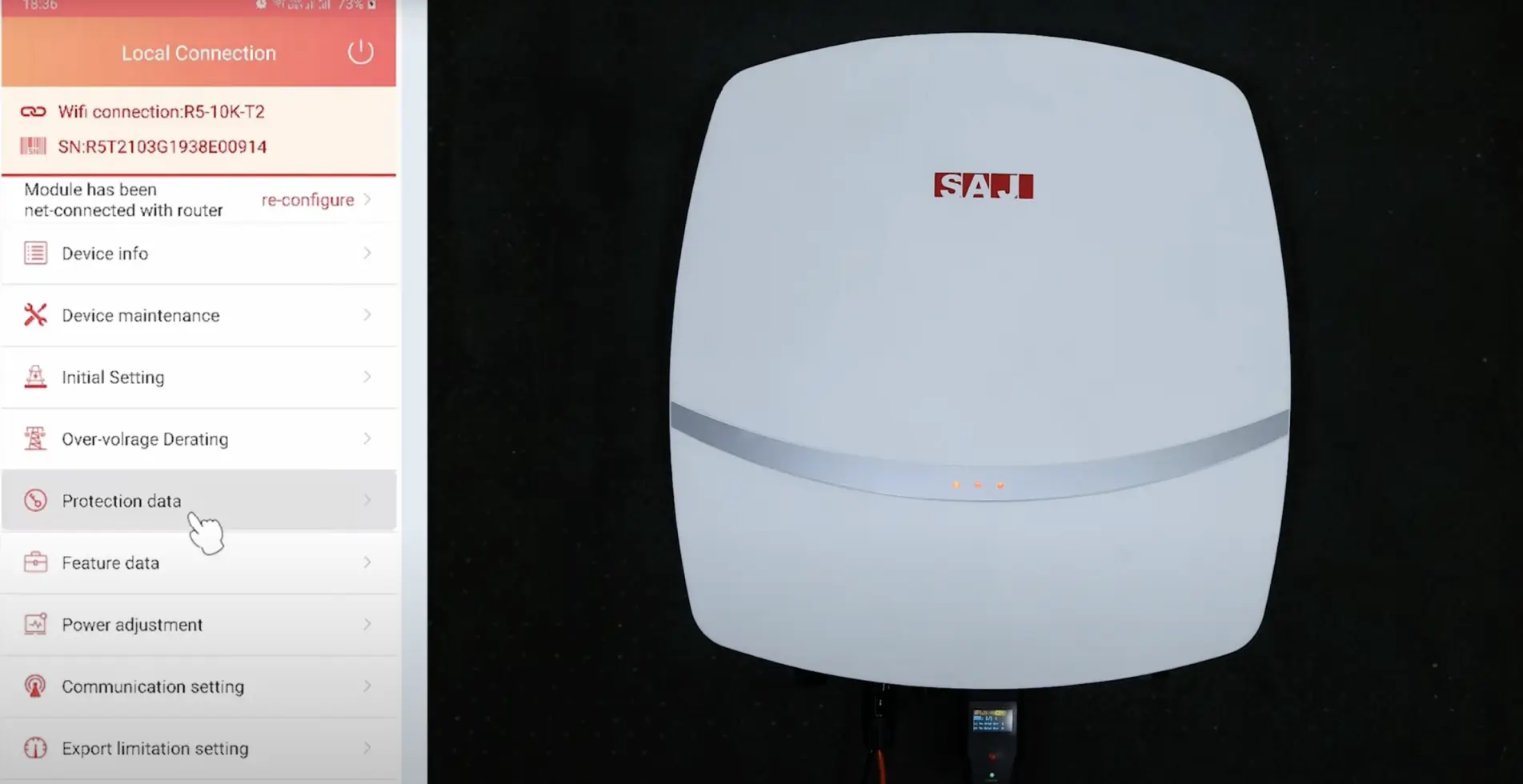
Step 4: Create Your "Plant"
- Once the inverter is connected to your home network, the app will guide you to create a "Plant."
- Give your plant a name (e.g., "Home Solar").
- You will be prompted to add a device. Scan the barcode of your inverter’s Serial Number (SN) or enter it manually.
Verification: How to Know It Worked
Congratulations! Your system should now be online. On the eKeeper app’s main dashboard, you should see a green "Normal" status and numbers appearing under "Current Power" and "Today Yield".
The 5-Minute Fix: How to Reconnect an "Offline" Inverter
Don’t worry, this is the most common issue SAJ owners face, and it’s usually easy to fix.
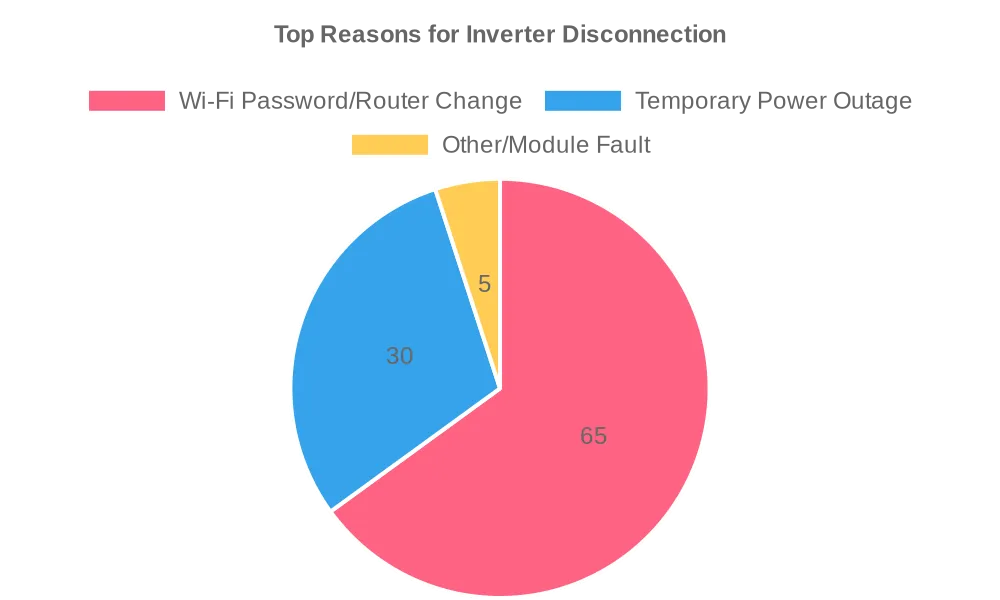
Why Inverters Go Offline
Your inverter goes offline when it can no longer communicate with your home’s Wi-Fi router. The most common causes are a temporary power outage or a recent change to your router or Wi-Fi password, as the chart below shows.
The 3-Step Reconnection Process
- Open the eKeeper app and log in.
- To fix an offline inverter, simply navigate to My > Remote control > WiFi in the eKeeper app and follow the on-screen prompts to re-enter your Wi-Fi password.
- This will guide you through the same process as Paso 2 y Paso 3 of the full guide above.
Verification: Confirming You’re Back Online
After completing the process, wait about 5-10 minutes. The status on your eKeeper dashboard should change from "Offline" to "Normal".
Chapter 3: Understanding and Troubleshooting Your System
How to Read the eKeeper Dashboard Like a Pro
Now that you’re online, what does it all mean? Here’s a quick guide to understanding your on-grid system’s data.
A Visual Dictionary: What Every Number and Arrow Means
This screen tells the complete story of your system’s performance at a glance. The arrows on the dashboard show the flow of energy, letting you see in real-time if the power from your panels (PV) is going to your home (Load) or being sold back to the Grid.
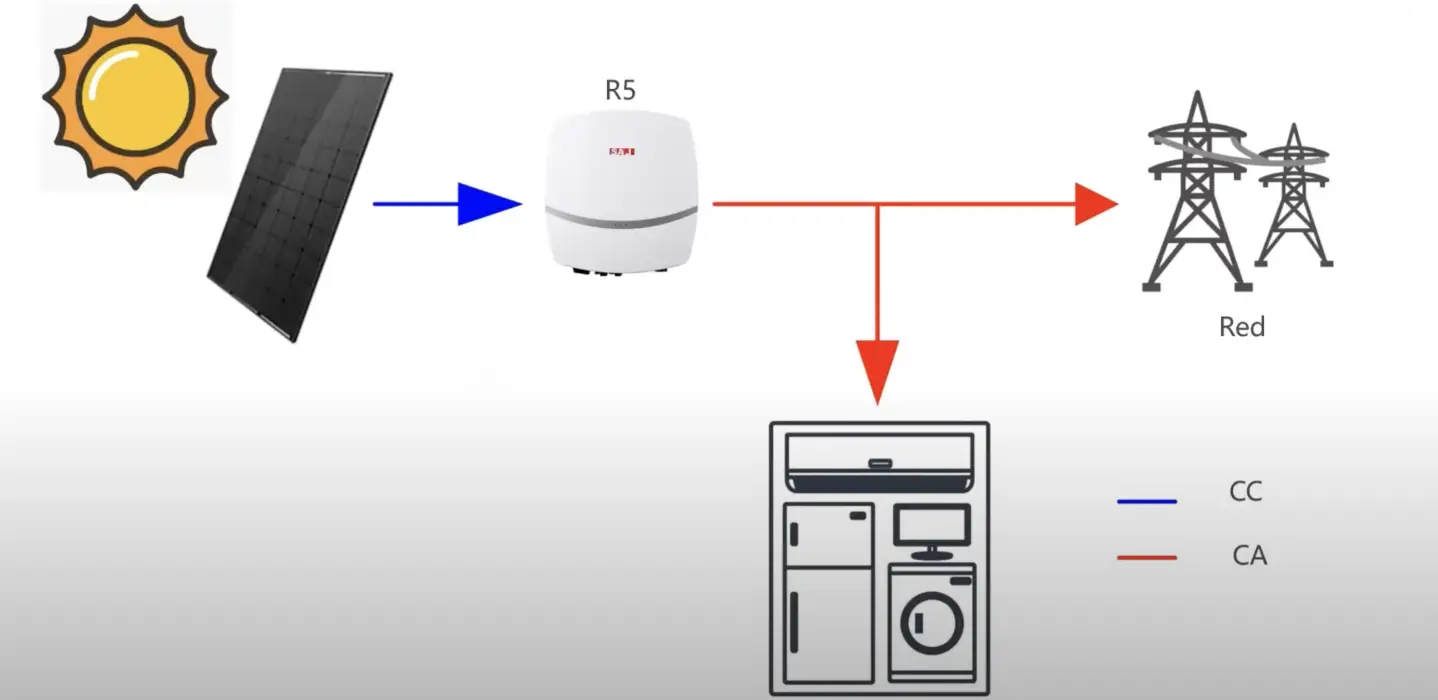
- PV (Photovoltaic): This is the real-time power your solar panels are currently generating.
- Grid: This shows how much power you are either pulling from the grid (Import) or sending back to it (Export). The arrow’s direction is key!
- Load: This represents your home’s total energy consumption. (See the FAQ below if this number is missing!)
- Today Yield: The total amount of solar energy your system has generated so far today.
- Total Yield: The total amount of solar energy your system has generated since it was first turned on.
How to Track Your Production History
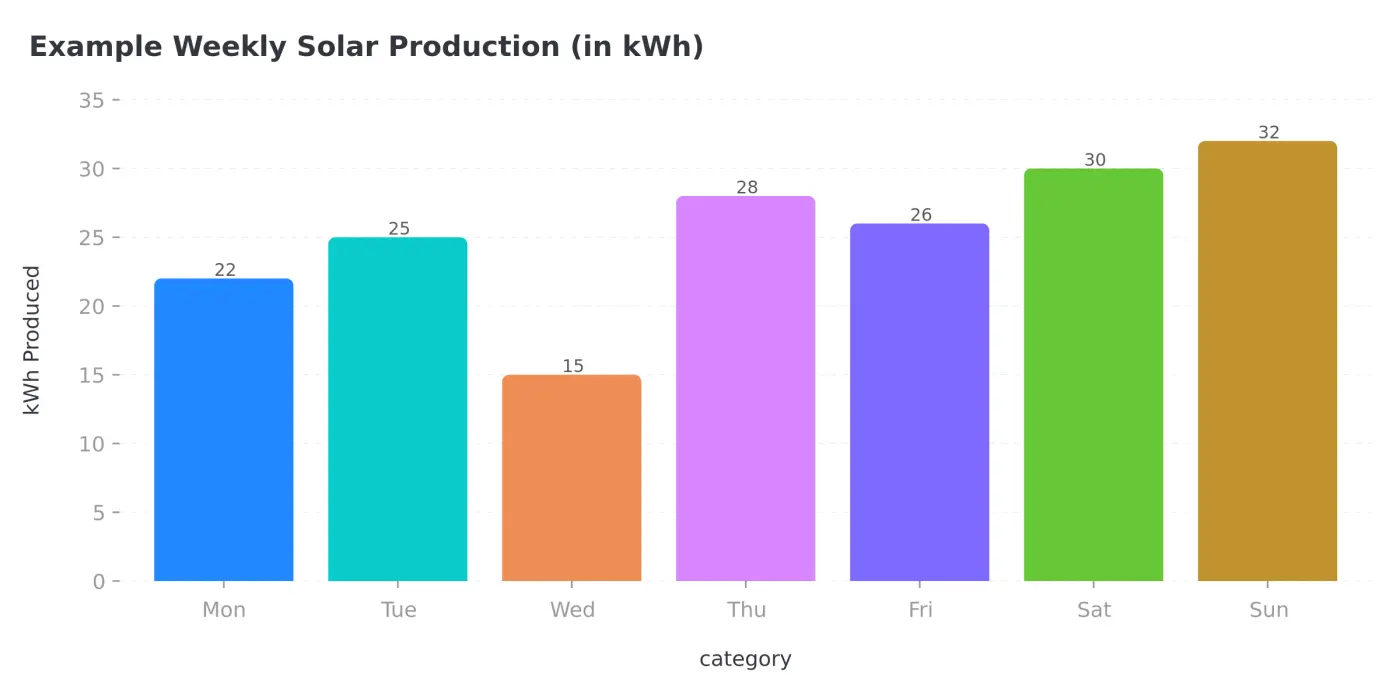
To see how your system has performed over time, tap the Estadísticas icon on the dashboard. Here you can view graphs of your solar production by Day, Month, and Year, which will look something like this.
The Sunriver Troubleshooting FAQ: Solving Common Glitches
Here are the answers to the most common questions we get at Sunriver Electric.
Question: Why can’t I see my home’s energy consumption?
This is the most common question from new on-grid system owners. By default, an on-grid inverter is designed to measure the energy it produces. To measure your home’s energy usage, a separate device called a CT Clamp3 must be installed in your electrical panel.
Question: My production data seems wrong. Why?
If you’ve just reconnected your inverter, you must wait at least 15-30 minutes. It is very common for the data to appear incorrect during this initial sync period as the inverter uploads its stored information to the cloud. Give it time to stabilize before troubleshooting further.
Question: The app is showing an "Event Code." Is it serious?
Most event codes are temporary alerts, not critical failures. Common alerts like "Grid Voltage Error4" usually mean the inverter is protecting itself from unstable grid conditions and will resolve on its own.
| Event Code | Meaning in Plain English | What You Should Do |
|---|---|---|
| Grid Voltage Error | The grid voltage is temporarily too high or low. | This is common and usually resolves itself in a few minutes. |
| Grid Loss Error | The grid has experienced a brief outage. | Your inverter will automatically reconnect when the grid is stable. |
| Communication Fault | The app is having trouble talking to the inverter. | This is usually a temporary Wi-Fi issue. Monitor for now. |
Question: The app is asking for an "Installer" login. What should I do?
You have likely tried to access an advanced settings menu. If the app asks for an installer password, simply go back, as you should only be logged in as an "Owner"; these settings are for professional technicians only.
Chapter 4: Your Next Steps
In Summary: Your Key Takeaways
In short, connecting your SAJ on-grid inverter is a straightforward process using the eKeeper app, and most common "offline" issues can be resolved with a simple Wi-Fi reconfiguration.
By understanding the data on your dashboard, you can now actively monitor your solar investment. Remember that for on-grid systems, production data is standard, while consumption data is an optional upgrade.
Still Stuck? Your Sunriver Electric Support Path
We designed this guide to solve 99% of common setup and connection issues.
If you have walked through all these steps and your system is still offline, or you are seeing a persistent hardware fault code that isn’t on our list, it may indicate a deeper issue.
For Sunriver Electric customers, your next step is simple: contact us. We are your partner in this journey and are here to help.
-
Understanding the significance of the Serial Number can help you manage your solar inverter effectively. ↩
-
Get insights into DTU Signals and their importance in solar inverter connectivity. ↩
-
Learn about CT Clamps and their role in measuring energy consumption. ↩
-
Understand the implications of a Grid Voltage Error and how to address it. ↩